Locked Out of Your iPhone? 3 Ways to Unlock It
Locked out of your iPhone? Forgot your password? iPhone disabled because you (or your kids) entered the wrong passcode too many times? Here are three ways to unlock your iPhone.
Method 1: Unlock your disabled iPhone with iCloud/Find My iPhone
If Find My iPhone is enabled, you can factory reset your iPhone from another device. Note that this method will erase your data, which might give you pause if you don’t have a backup.
- Turn on your iPad
- Log into iCloud (forgot your Apple ID? You can recover it here)
- Find your iPhone in iCloud and select ERASE IPHONE
Your iPhone will be reset to factory settings, which will allow you to set it up new and create a new password. You can then restore a backup.
Method 2: Unlock your iPhone with your computer
You can use your computer to reset your iPhone to factory settings. Like iCloud, this method will erase your data and you won’t be able to recover it unless you have a backup.
1. Connect your iPhone to your computer with a USB cable
Use the cable that came with your iPhone or another compatible cable:
- iPhone 12, 13, and 14: Lightning cable
- iPhone 15, 16, and 17: USB-C cable
If you have an iPhone 12, 13, 14, 15, 16, or 17:
- Press and quickly release the VOLUME UP button.
- Press and quickly release the VOLUME DOWN button.
- Press and hold the SIDE BUTTON.
- Continue holding the SIDE BUTTON even after the Apple logo appears.
- Release the button when the Recovery Mode screen appears.
2. Restore your iPhone
Once your iPhone enters Recovery Mode:
- On a Mac running macOS Catalina or later: Open Finder and select your iPhone from the sidebar.
- On a Windows PC: Open the Apple Devices app and select your iPhone.
- On older Windows PCs: Open iTunes and select your iPhone.
When prompted, select Restore. Your computer will download the latest iOS software and erase your iPhone, including the passcode.
3. Set up your iPhone again
After the restore process is complete, your iPhone will restart and display the setup screen. You can then:
- Restore your data from an iCloud or computer backup, or
- Set up your iPhone as a new device.
Important: If Find My iPhone was enabled before the reset, you’ll need to enter the Apple Account/Apple ID and password previously associated with the device to complete setup.
Your iPhone will reset to factory settings. When it’s done, you can set it up like new, create a new password and restore a backup.
Method 3: Bypass your iPhone passcode
Search Google and YouTube, and you’ll find various exploitations people have used to trick iPhones into allowing access without a passcode. None of these methods are guaranteed to work, but if you don’t have a backup they might be worth a try before you wipe your data.
Siri commands
Certain Siri commands have been said to bypass iPhone passcodes. They include:
- Ask Siri to open an app you don’t have, tap the App Store icon, then tap the Home button twice and swipe the screen
- Ask Siri to open your World Clock, then tap it to view alarm ringtones. Tap “buy more tunes,” then the Home button
- Ask Siri to display your Cellular Data, then turn Cellular Data off and change your passcode
Of course, Apple takes security seriously so by the time you read this, it’s unlikely any of these hacks will work (if they ever did to begin with). Search online for the latest tricks to see if you can get into your iPhone without your passcode.
iTunes backup
Though Apple discontinued iTunes for Mac users, if you still have a copy of iTunes you can use this trick to try to access your iPhone. Connect your iPhone to your computer and open iTunes, select your iPhone, then click “back up now.” If the backup begins, your iPhone should unlock. You can then cancel the backup and change your passcode.
NOTE: If you still have iTunes, you can also use it to reset your iPhone to factory settings.
iPad unlocking software
Several companies claim to be able to unlock iPhones without the need for passcodes, including Tenorshare 4uKey. Both offer free trials and can be purchased for $30 to $40. If you don’t have a backup and no other method works, it might be worth the expense to give iPhone unlocking software a try.
Next: Why It’s Smart to Buy a New iPhone Every Year
 Sell Your iPhone in Dallas: Where to Get the Most Cash
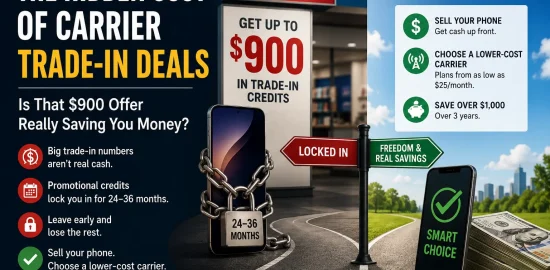
  Hidden Cost of the Verizon Trade-In Deal: Is That Offer Really Saving You Money?
  iPhone Speaker Repair: Costs, Fixes & When to Sell
 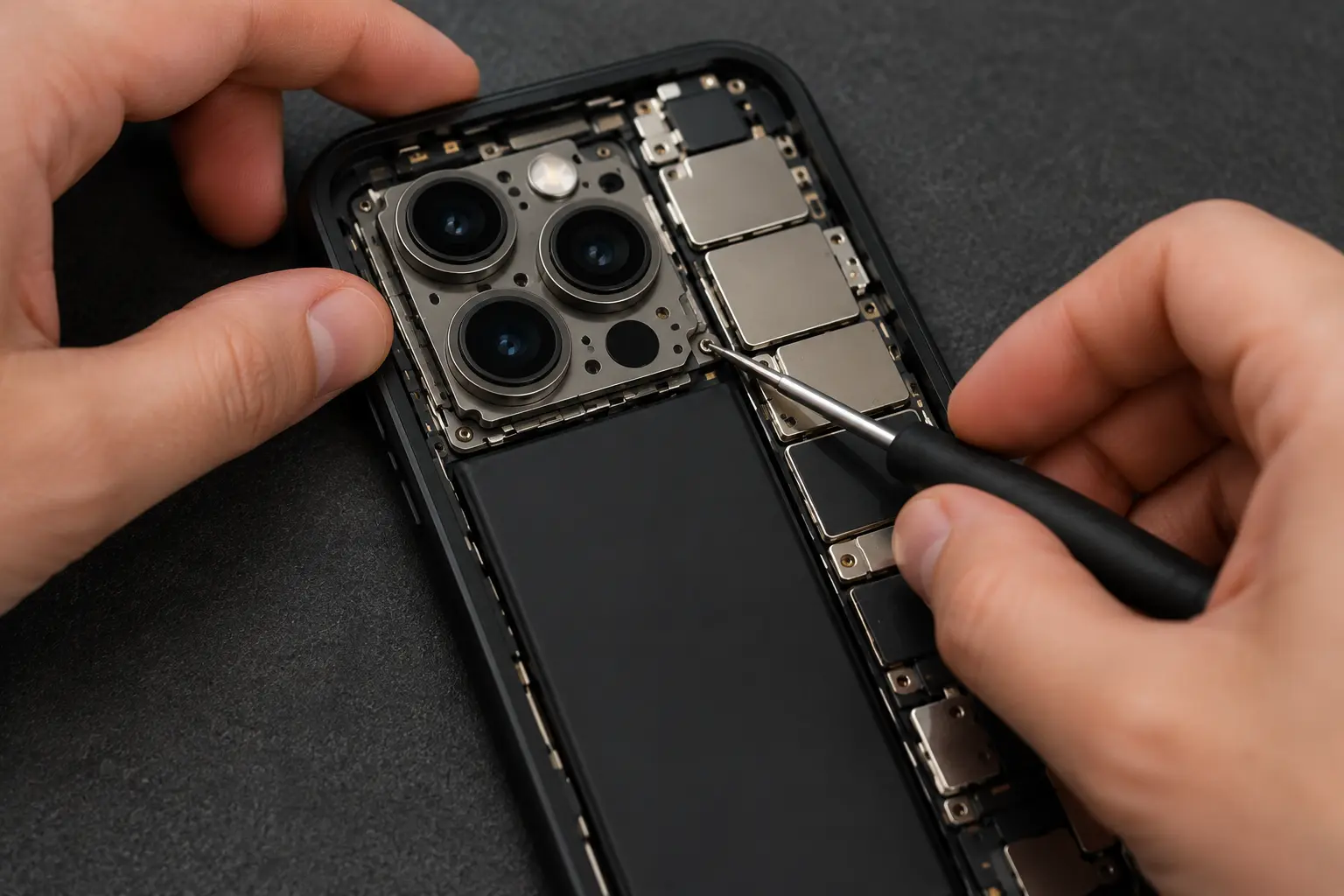 iPhone Camera Repair: Costs, Options & Where to Sell
  Dead iPhone Battery Replacement Guide: DIY or Hire It Out?
  iPhone Screen Repair Options & Cost: Is It Worth Fixing?